SignLocal user guide
SignLocal lets you sign PDFs and other documents in your web browser. It works on laptops, desktops, tablets and phones. Your documents never leave your device. They are opened, signed and saved on the device itself, and nothing is uploaded anywhere.
This guide covers:
- Quick start
- Opening SignLocal
- Opening a document
- Creating your signature
- Placing your signature and other items
- Finishing and saving
- Several people signing
- Signing a Word document or any other file
- Checking a signed file (Verify)
- Your signing identity
- Using SignLocal on a phone or tablet
- What other people see in Adobe Acrobat
- Questions and troubleshooting
See also: Legal validity.
Quick start
- Open SignLocal and choose Choose a document.
- Choose Signature, draw your signature, choose Use this, then tap the page where it should go.
- Choose Finish, tick that you agree, choose Sign document, then Download.
The downloaded file (for example contract-signed.pdf) is your signed copy. Send it to whoever needs it.
Opening SignLocal
Use whichever of these your organisation gave you. They all work the same way.
| You have | What to do |
|---|---|
| The web address https://signlocal.pages.dev | Open it in Chrome, Edge, Safari or Firefox. |
| A file called SignLocal.html | Double-click it. It opens in your browser and works without internet. |
| A SignLocal section on a SharePoint page or a Teams tab | Use it right there on the page. |
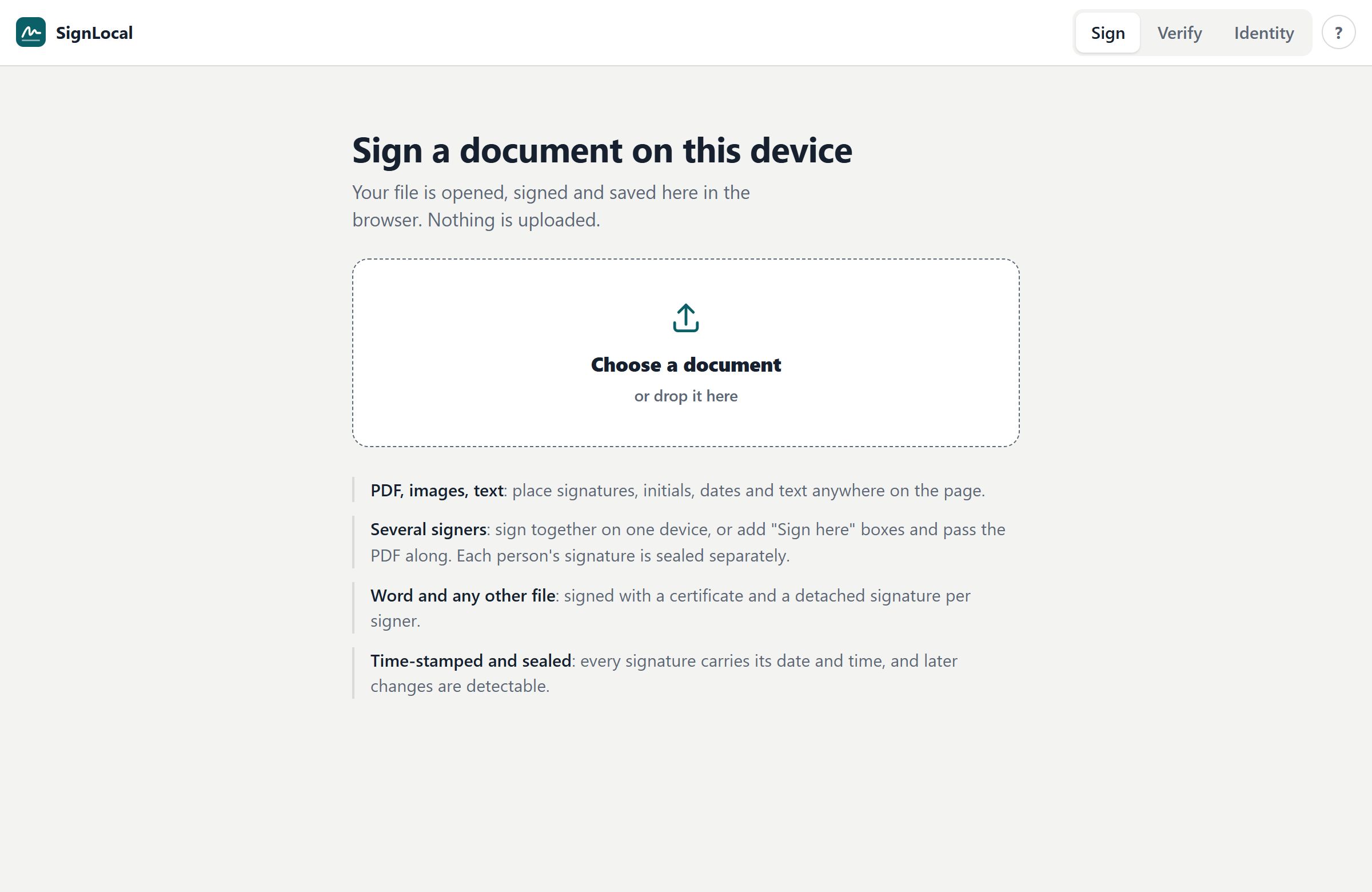
The screen has three tabs at the top:
- Sign: open a document and sign it.
- Verify: check that a signed file is genuine and unchanged.
- Identity: your signing key and certificate.
The ? button opens this guide.
Opening a document
Choose Choose a document, or drag a file onto the dashed box.
| File type | What happens |
|---|---|
| Opens as pages that you can sign anywhere. | |
| Images (PNG, JPG, WebP, GIF, BMP), for example a photographed form | Turned into a one-page PDF, then signed like a PDF. |
| Text files (TXT, CSV, MD, JSON, XML, YAML, log) | Turned into a PDF, then signed like a PDF. |
| Word (.docx) | Signed as a whole; see Signing a Word document. |
| Any other file (Excel, PowerPoint, ZIP, CAD…) | Signed as a whole with a certificate; see the same section. |
Password-protected PDFs can't be signed. Open the PDF in the program that protected it, remove the password, and then sign it.
To close the document without saving, choose × at the top left.
Creating your signature
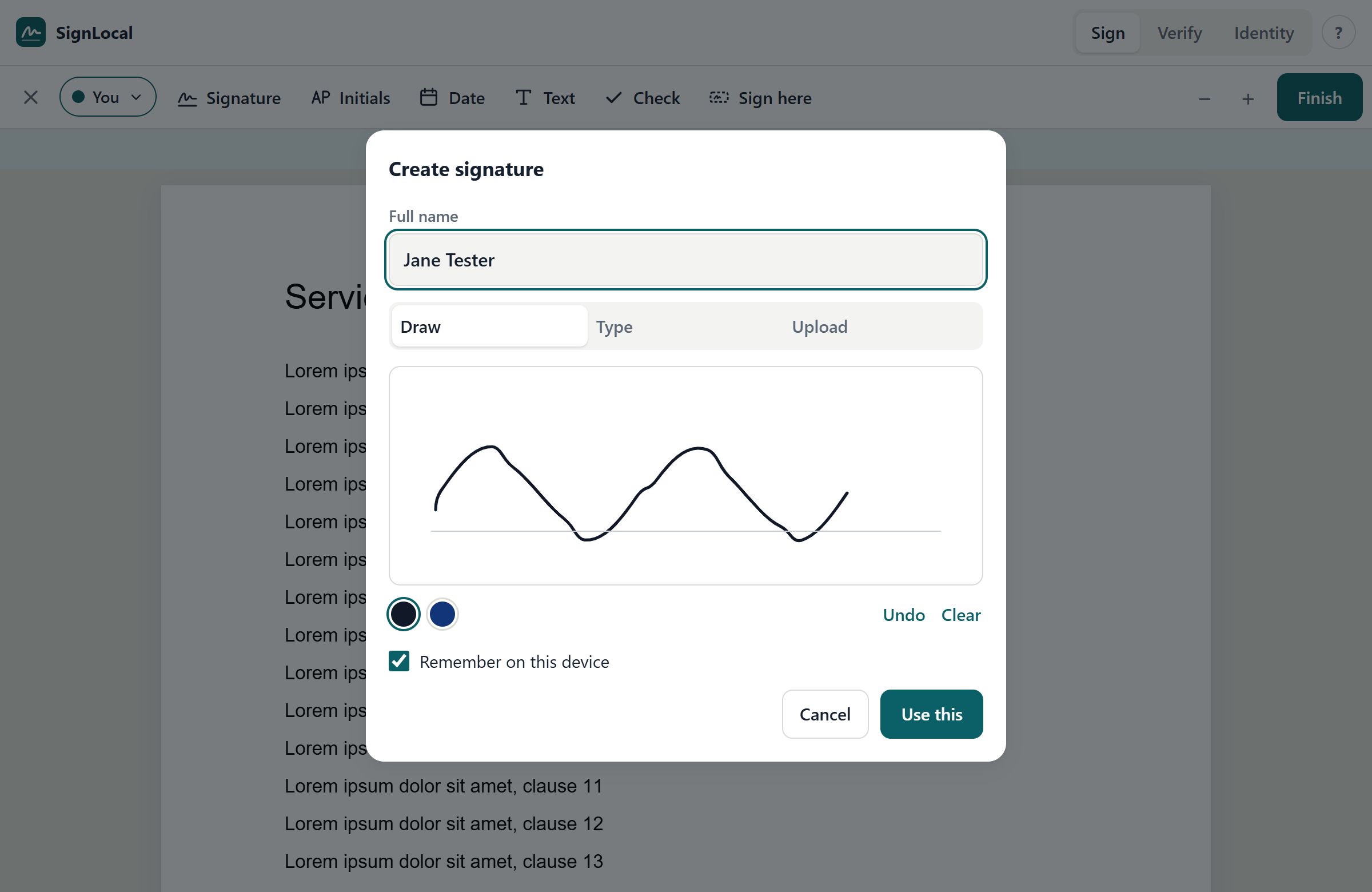
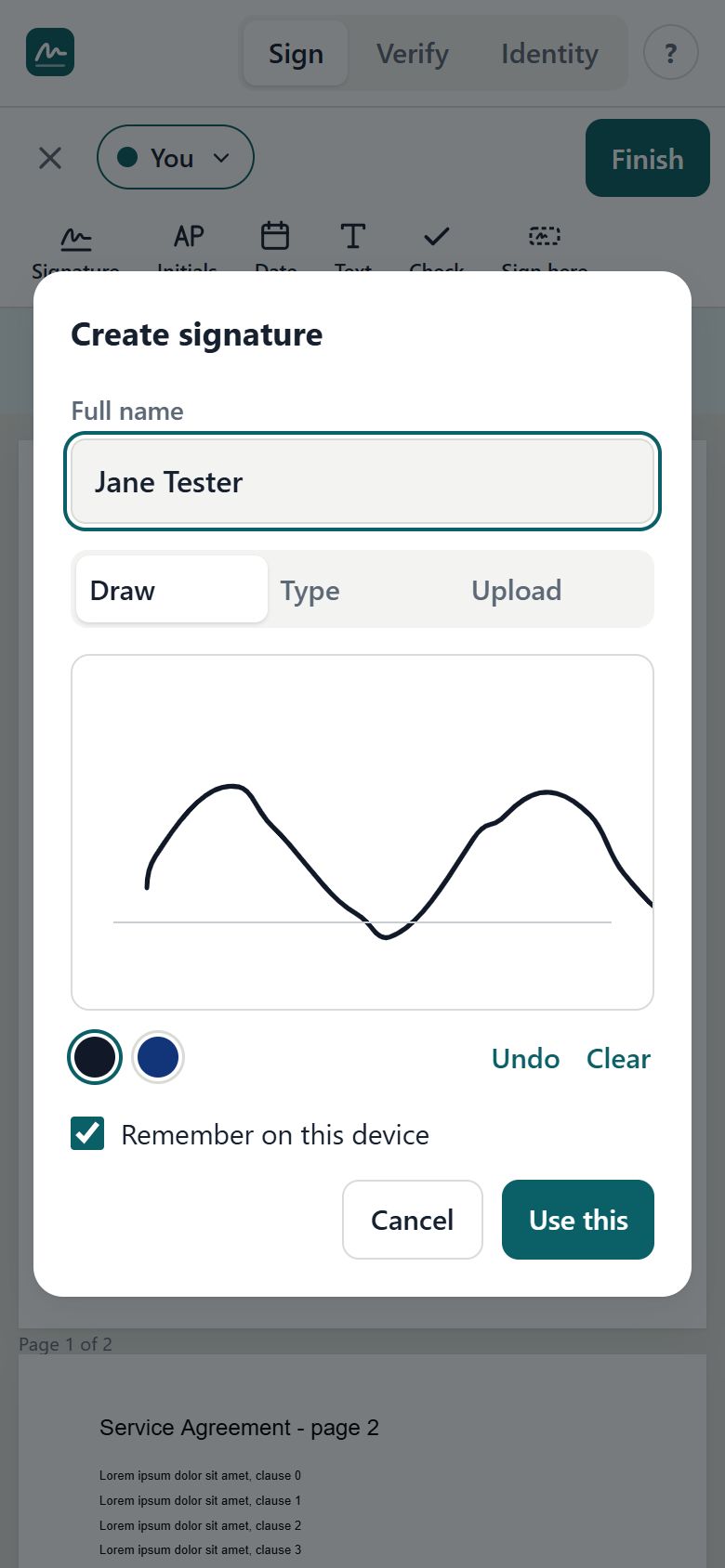
Choose Signature (or Initials) in the toolbar. The first time, SignLocal asks you to create one.
- Enter your full name. It appears under your signature and in the signature certificate.
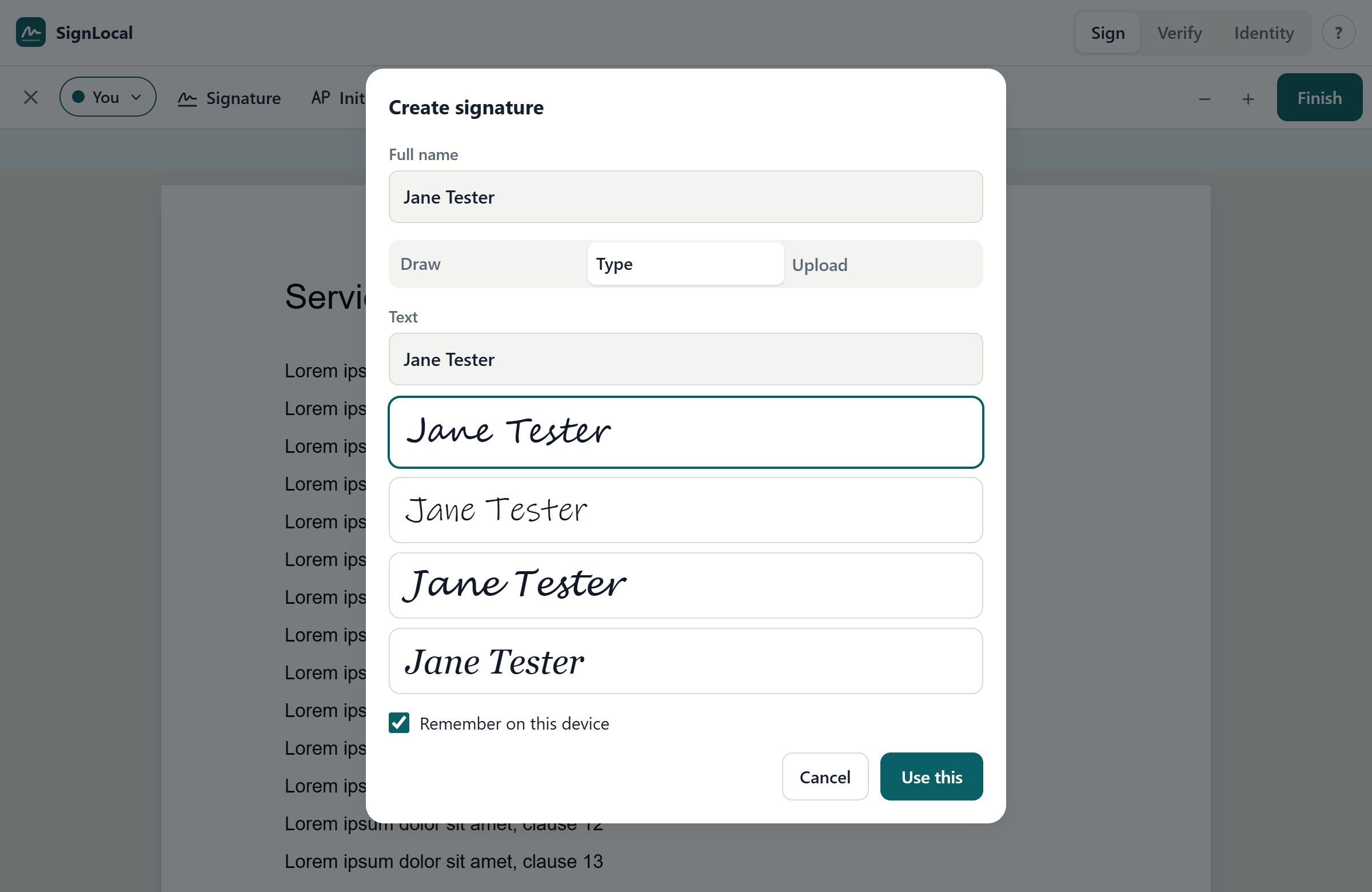
Choose how to make your signature:
- Draw: sign in the box with a mouse, finger or stylus. Undo removes the last stroke and Clear starts again. The two dots switch between black and blue ink.
- Type: type your name and choose one of the handwriting styles.
- Upload: choose a photo or scan of your signature on white paper. The white background is removed automatically.
- Leave Remember on this device ticked if this is your own device. Your signature is then ready next time. Untick it on a shared computer.
- Choose Use this.
To change your signature later, choose Change in the blue hint bar while placing a signature, or open the signer menu (your name at the top left) and choose Change signature.
Placing your signature and other items
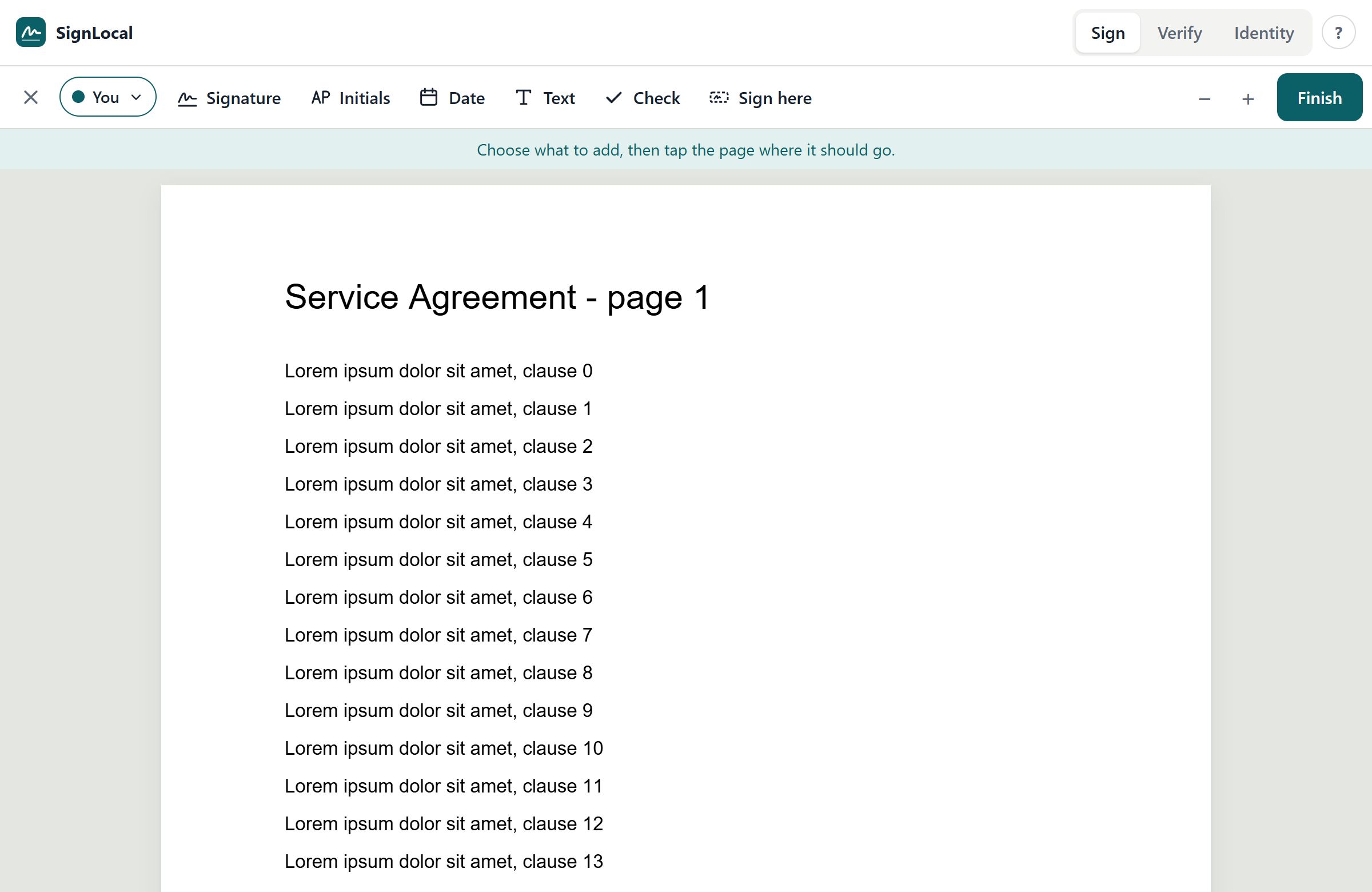
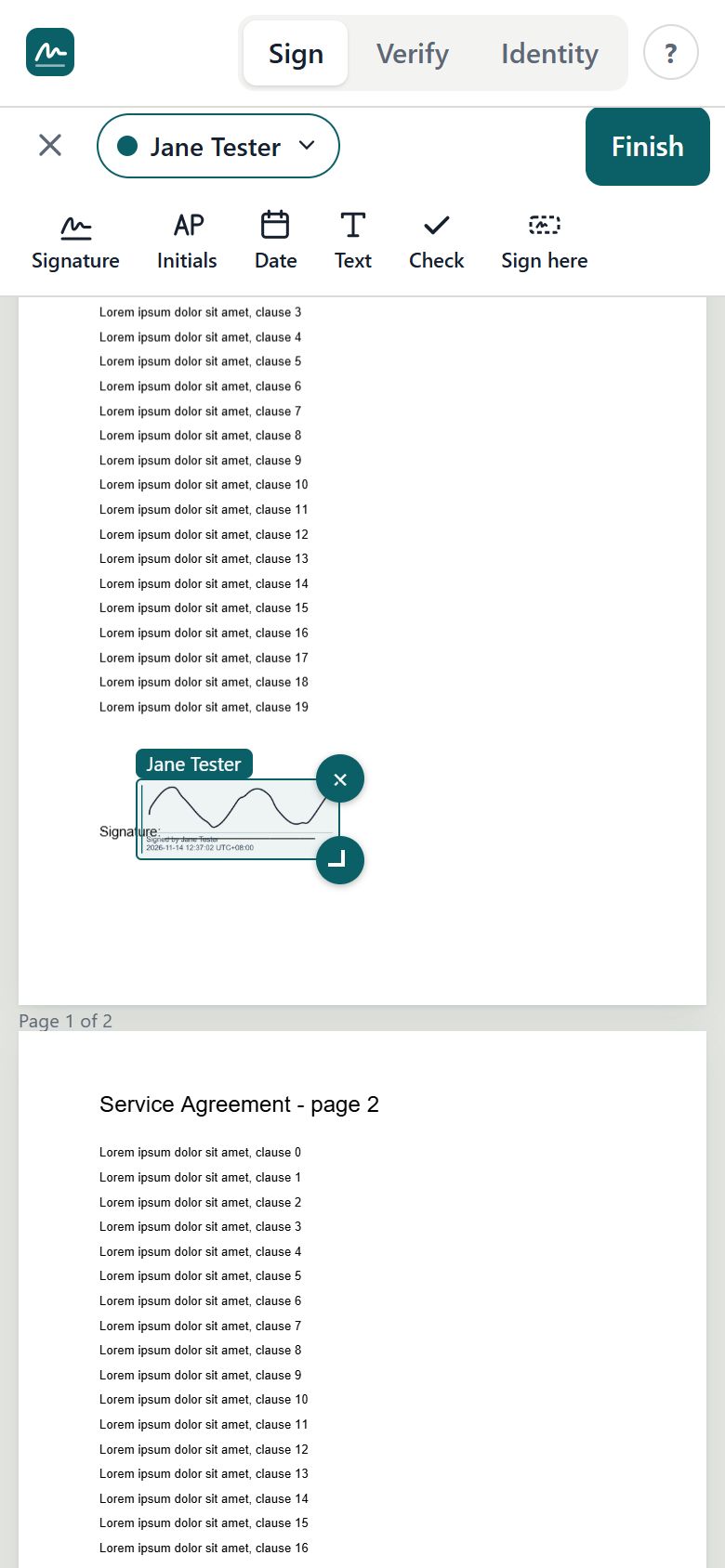
Choose a tool, then tap or click the page where the item should go.
| Tool | Places |
|---|---|
| Signature | Your signature with a caption: Signed by <name> and the date, time and time zone. |
| Initials | Your initials. |
| Date | Today's date. |
| Text | Any text you type, such as your job title or company. |
| Check | A check mark (✓), for tick boxes. |
| Sign here | A box for another person to sign later; see Several people signing. |
After placing an item you can:
- Move it: drag it.
- Resize it: drag the round handle at its bottom-right corner.
- Remove it: choose the × on it, or press Delete.
- Nudge it: select it and use the arrow keys. Hold Shift for bigger steps.
Use − and + at the top right to zoom out and in (desktop only).
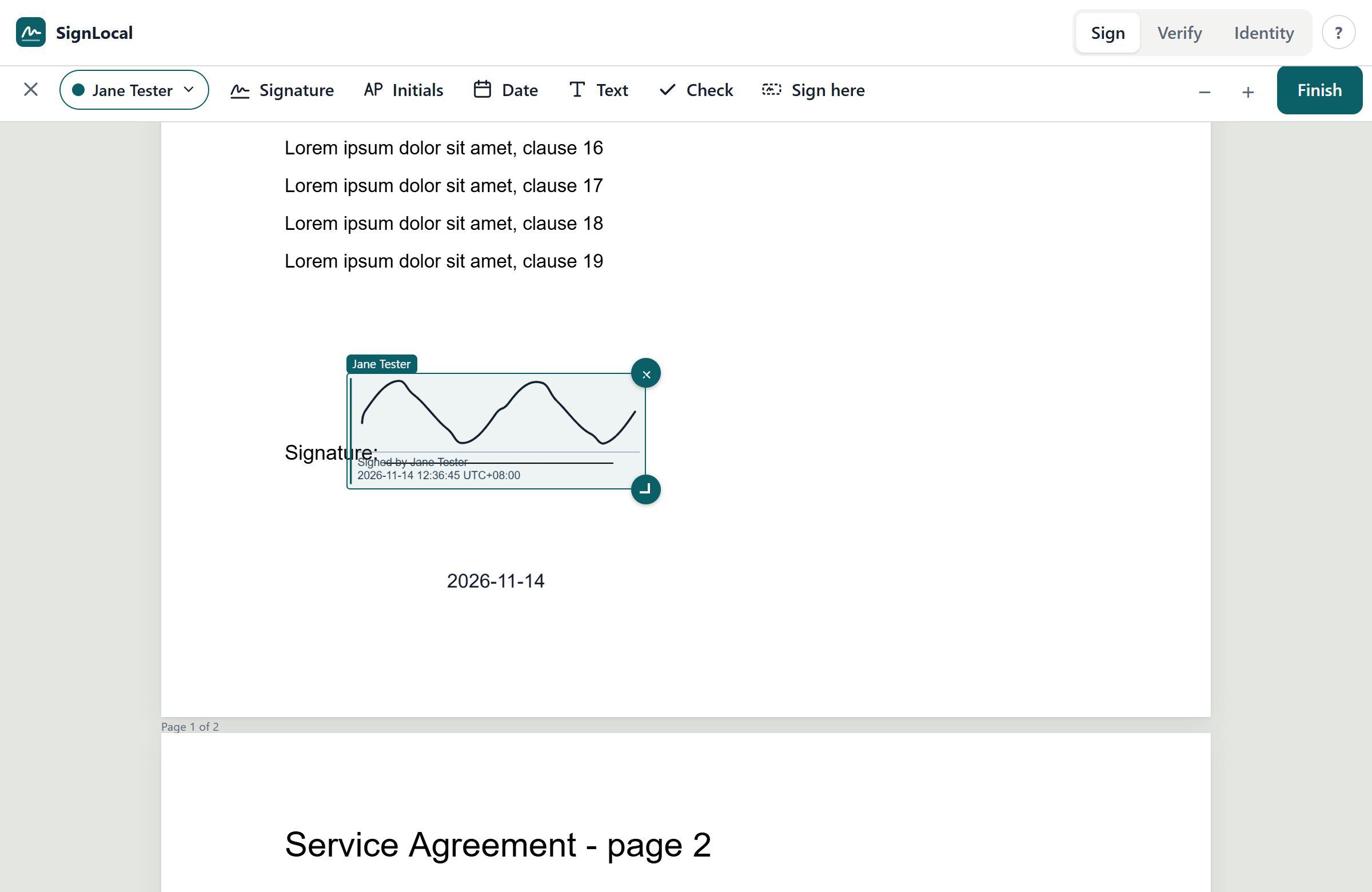
Finishing and saving
- Choose Finish.
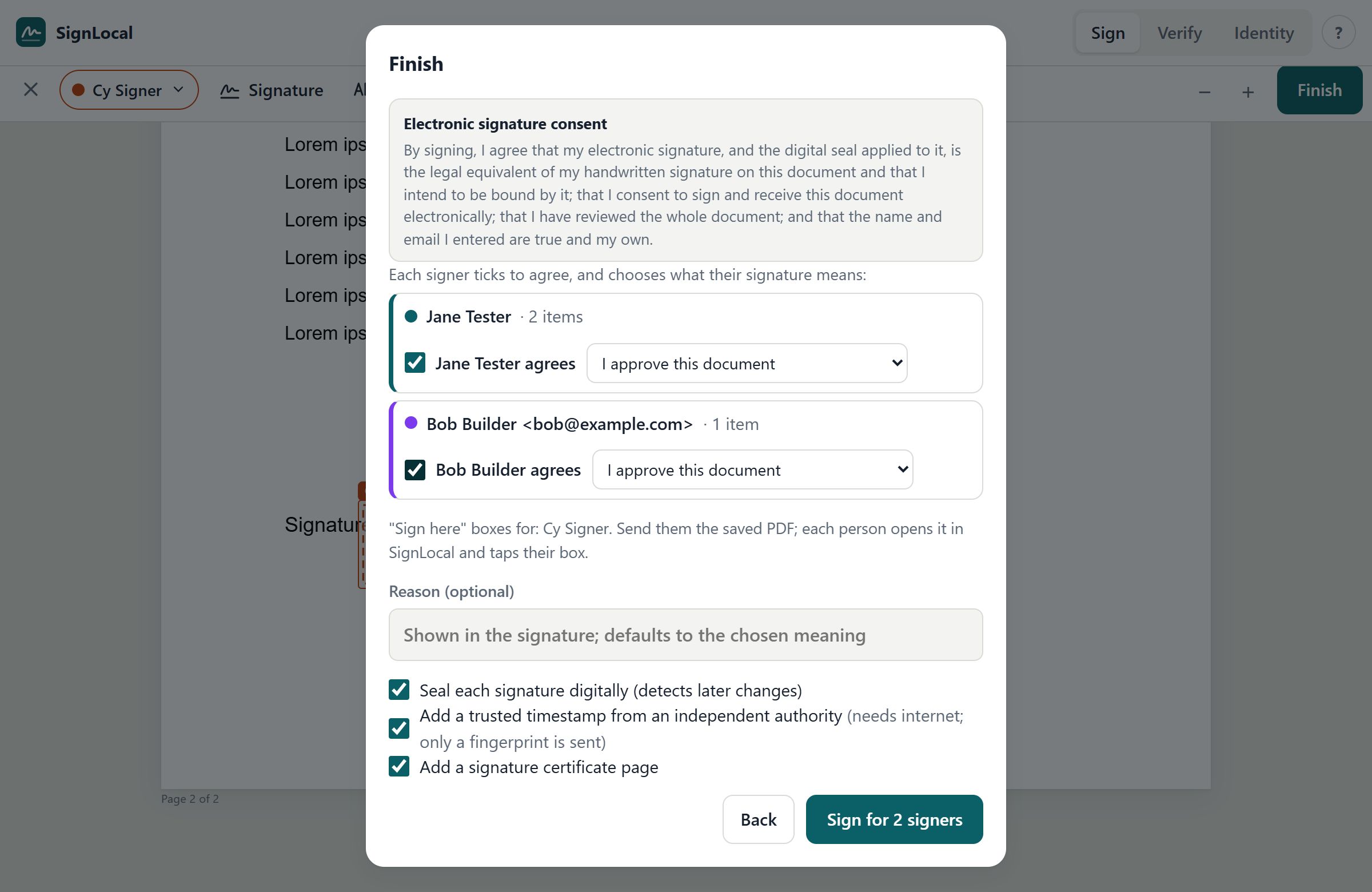
- Read the Electronic signature consent statement. Each signer must tick their own "<name> agrees" box; signing is not possible until everyone listed has agreed.
Each signer chooses what their signature means:
- I approve this document: the usual choice for contracts, approvals and forms.
- I am the author of this document.
- I acknowledge receiving this document: you have received it, not necessarily agreed to it.
Check the options:
- Reason (optional): your own wording, stored in the signature. If left empty, the chosen meaning is used.
- Seal each signature digitally: leave this ticked. It makes the file tamper-evident. If anyone changes the file later, the change is detected (see Verify).
- Add a trusted timestamp from an independent authority: leave this ticked when online. A public timestamp authority certifies when you signed, independently of your device's clock. Only a 32-byte fingerprint of your signature is sent, never the document. If you're offline, SignLocal signs anyway using your device's time and tells you so.
- Lock the document (shown when you are the only signer and there are no "Sign here" boxes): certifies the document so that any later change shows as a violation. Use it for final versions.
- Add a signature certificate page: adds a final page recording the document's fingerprint, the consent statement, each signer's details, meaning, consent time and signing key.
- Choose Sign document.
- Choose Download to save the signed copy. On phones and tablets, Share sends it straight to email, WhatsApp, Teams and similar apps.
The result shows each signature with its trusted time and the authority that issued it, for example DigiCert. If no timestamp could be added, it says so.
Is my signature legally binding? See Legal validity for what SignLocal records and how it maps to Malaysian, EU and US law.
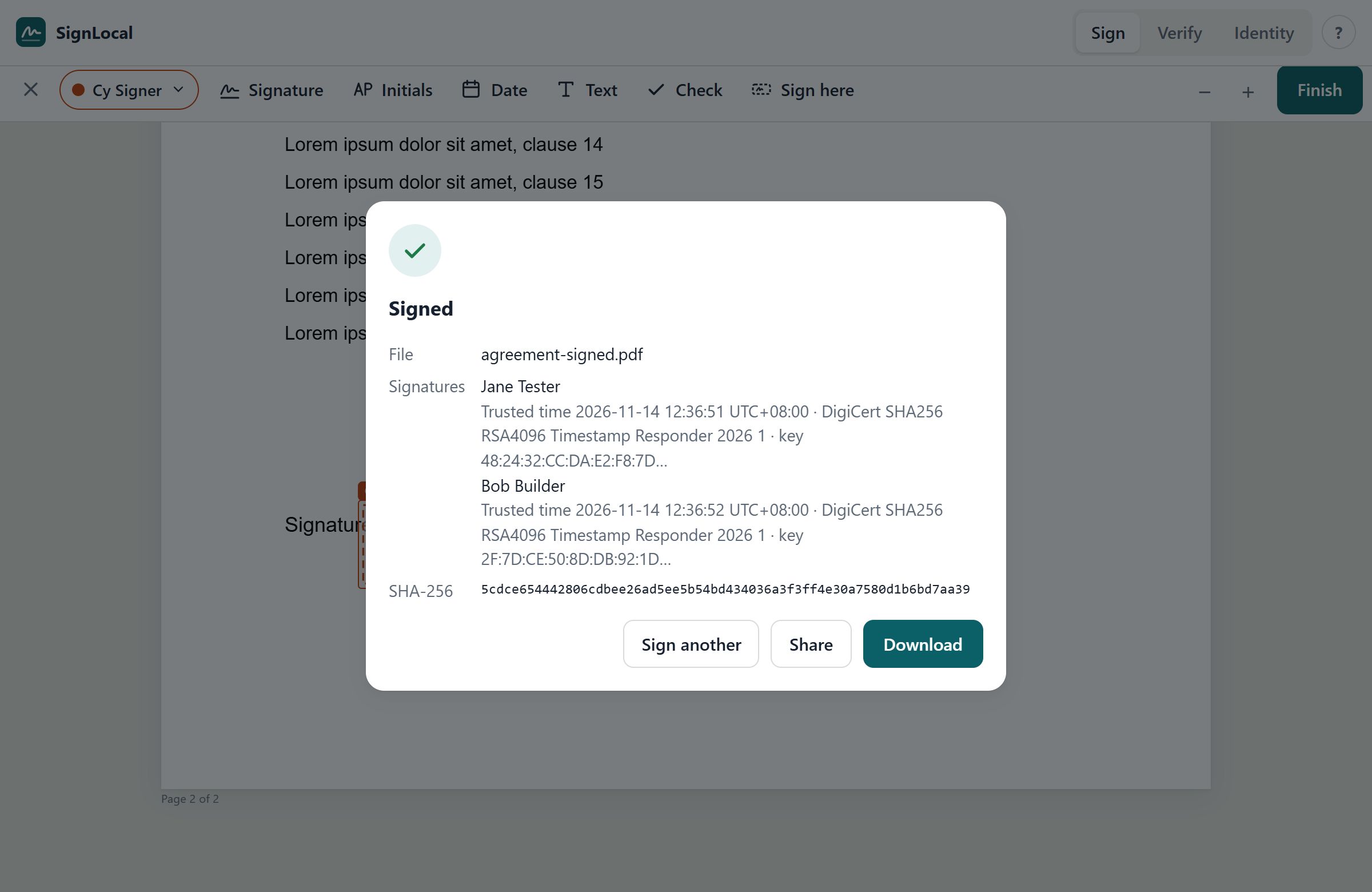
The signed file is named after the original with -signed added. The original file is not changed.
What the signature certificate page shows
- Document: the original file name and its SHA-256 fingerprint (a unique code that changes if even one character of the file changes), plus the page count.
- Time source and seal: whether trusted timestamps were used, and the signature standard (PAdES).
- Electronic signature consent: the exact statement the signers agreed to.
- Signers: name, email, signing key ID, type of certificate, what their signature means, when they agreed, and when each mark was placed.
Several people signing
SignLocal supports three ways for several people to sign one document.
A. Together on one device
Use this when everyone is in the same room, for example a client and a staff member at a counter.
- Open the document. The signer chip at the top left shows who is signing now (You at first).
- The first person creates their signature and places it.
- Tap the signer chip, choose + Add signer, and enter the next person's name (and email, if wanted).
- Choose Create signature for them and let them sign.
- Choose Done. They are now the active signer, so place their signature.
- Repeat for everyone else.
- Choose Finish. The dialog lists each signer. Choose Sign for N signers.
Each person's items have their own colour and name tag, so you can see whose is whose. Each person is sealed separately, with their own signing key and timestamp.
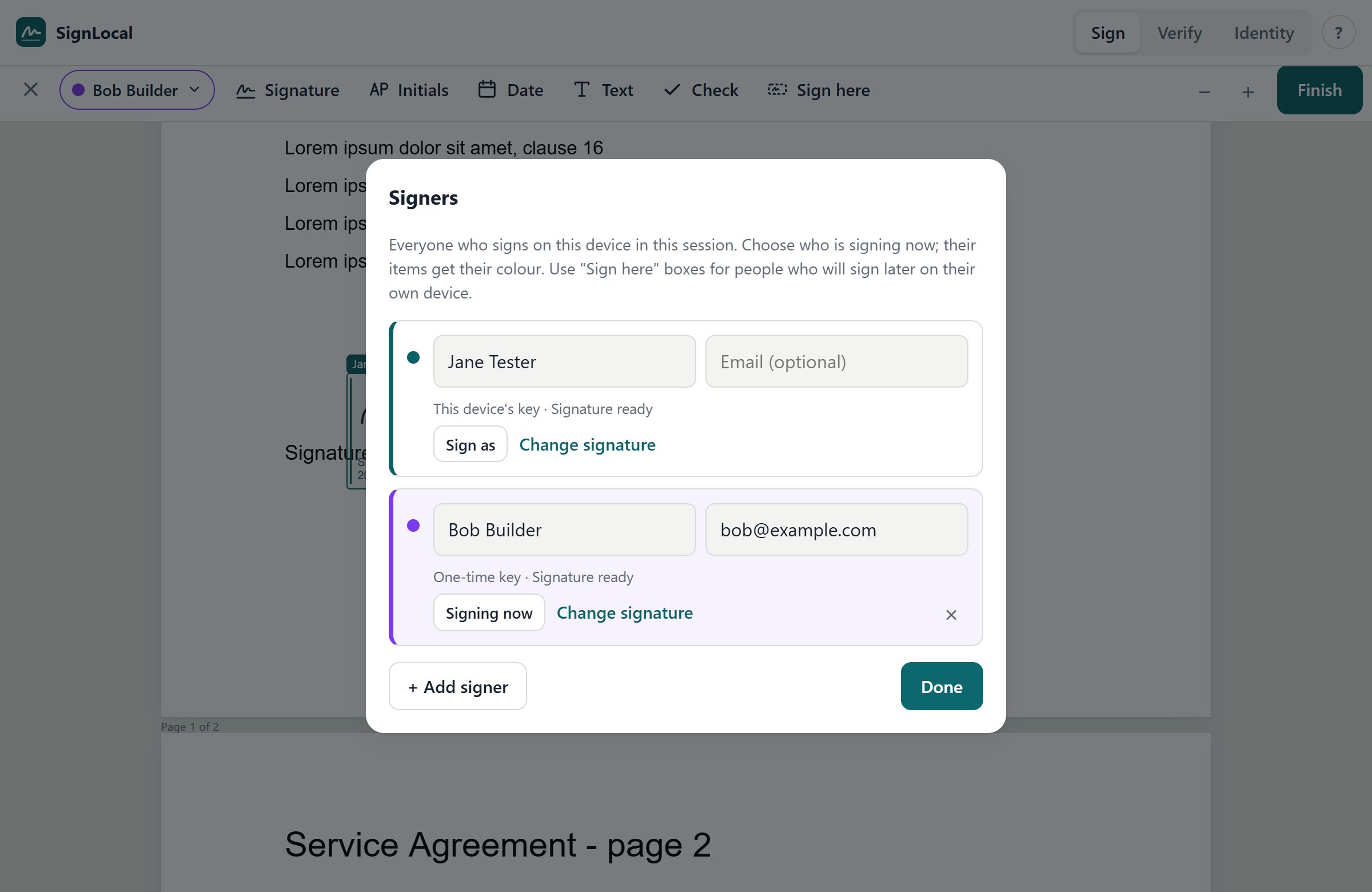
To switch who is signing, open the signer chip and choose Sign as next to their name. To remove someone (and their items), choose × on their row.
B. Send it to others to sign later
Use this when the other people are elsewhere.
Preparing the document (you):
- Open the document and sign it yourself, if you are signing.
- Open the signer chip, choose + Add signer, and enter the other person's name and email. Choose Done.
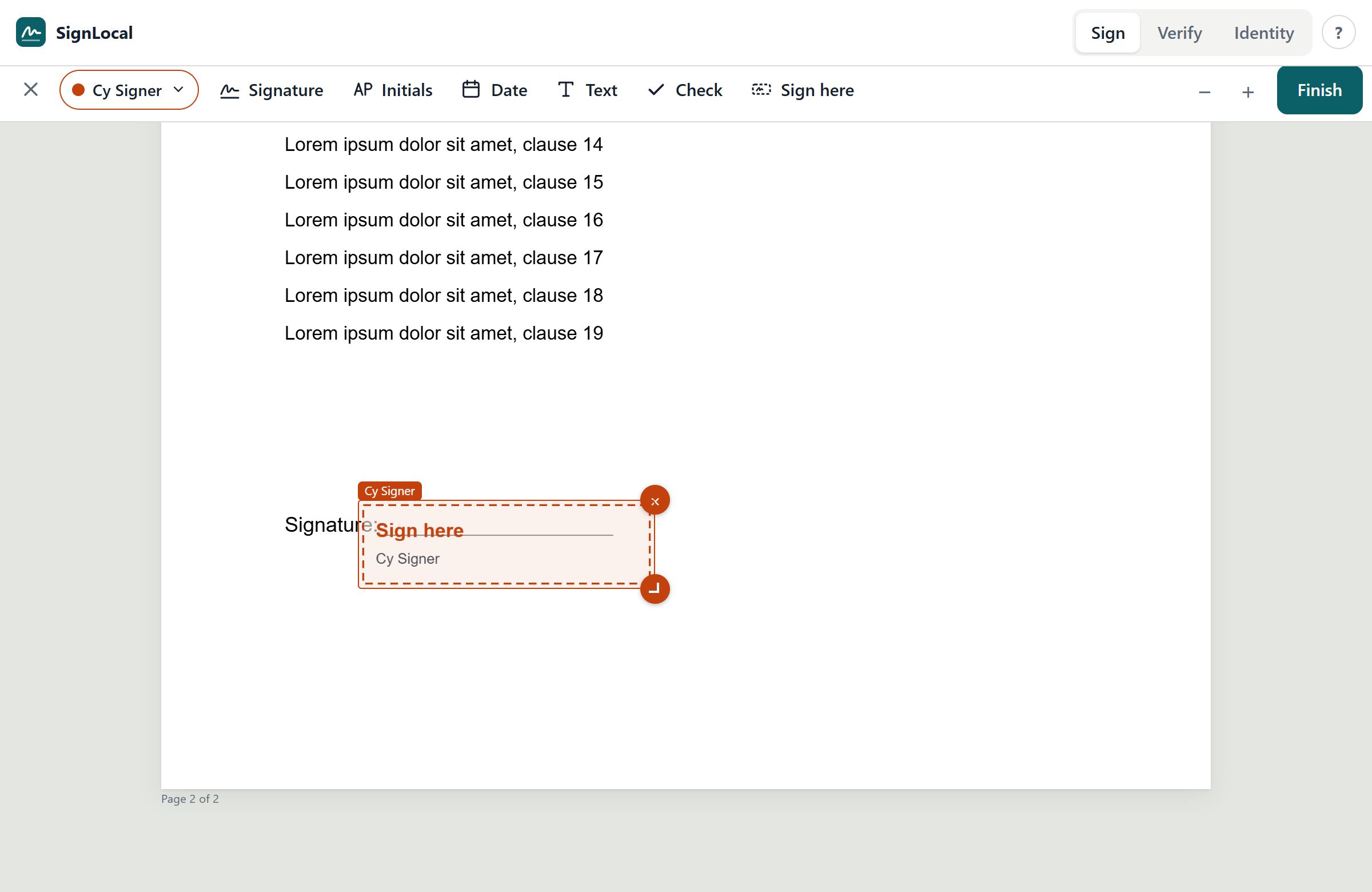
- Choose Sign here in the toolbar and tap where they should sign. A dashed box with their name appears. Repeat for each person.
- Choose Finish, then Download. (If you didn't sign, the button says Save for signing and the file is named -for-signing.)
- Send the PDF to the first person who still needs to sign, by email, Teams, SharePoint or any other way you normally share files.
Signing (each recipient):
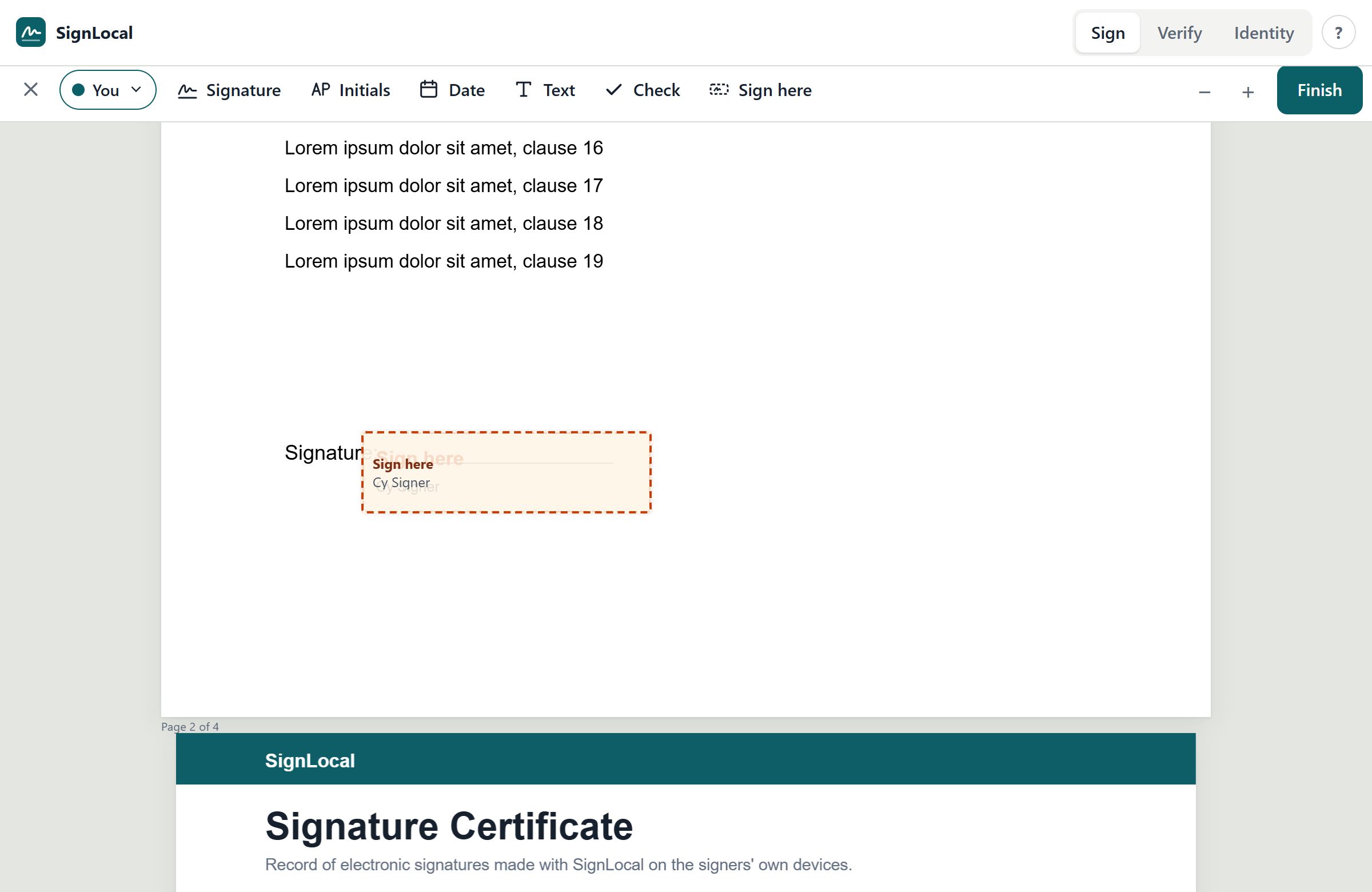
- Open the PDF in SignLocal. The boxes waiting for a signature pulse orange.
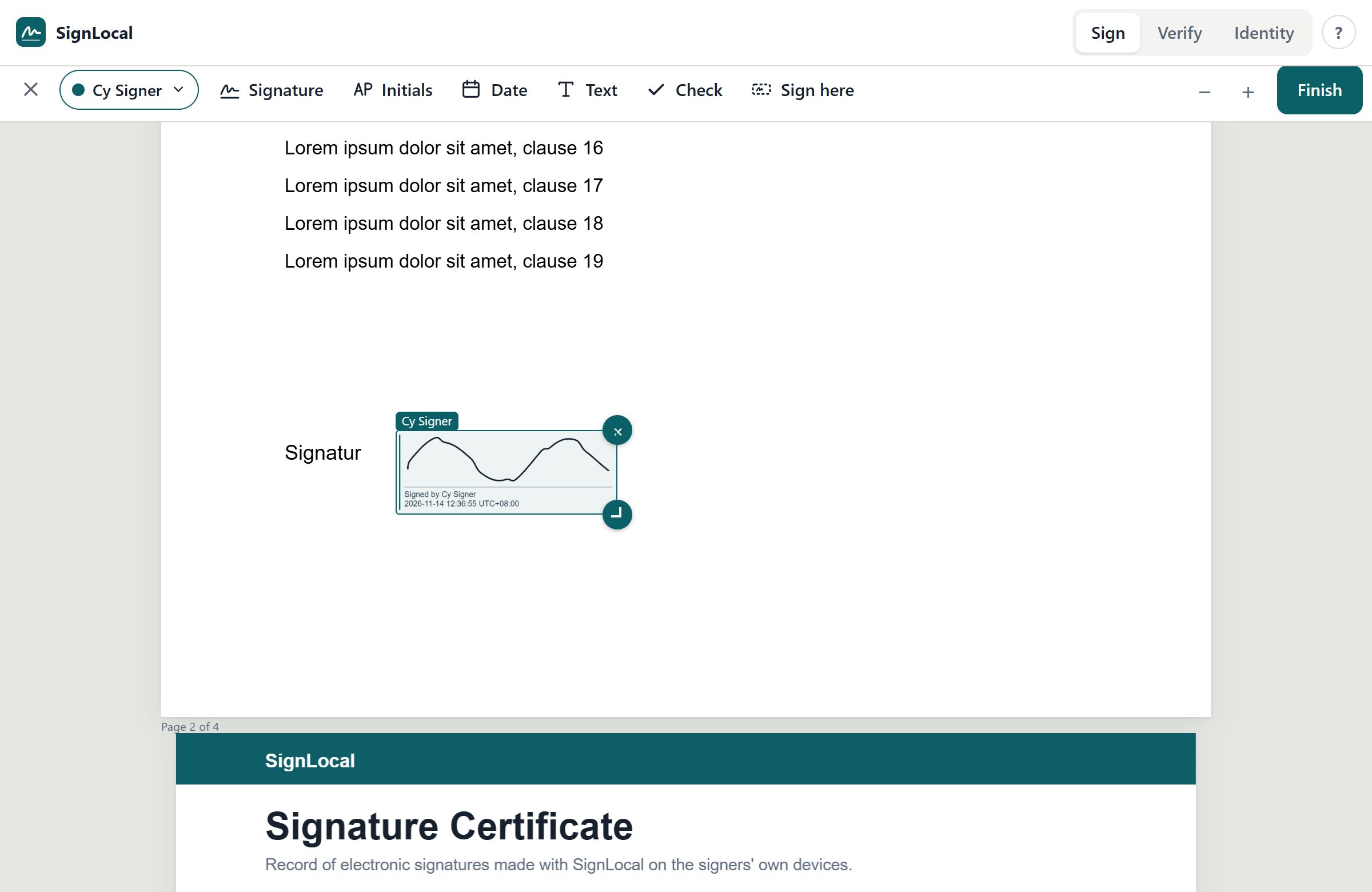
- Tap your Sign here box, create your signature, and choose Use this. Your signature is placed inside the box.
- Choose Finish → Sign document → Download.
- Send the new file on to the next person, or back to the sender.
Pass the file along in turn. Each person must sign the newest copy. If two people sign separate copies at the same time, the copies can't be combined.
The "Sign here" boxes are standard PDF signature fields, so a recipient can also sign in Adobe Acrobat or another PDF program instead.
C. Mixed
You can mix both methods: people who are present sign together (A), and you add Sign here boxes for the rest (B).
Are earlier signatures still valid after someone else signs?
Yes. Each new signature is added to the file without changing the parts earlier people signed. Verify shows every signature as valid and lets you download the exact version each person signed.
Signing a Word document or any other file
When you open a Word document or another non-PDF file, SignLocal shows a signing card instead of pages.
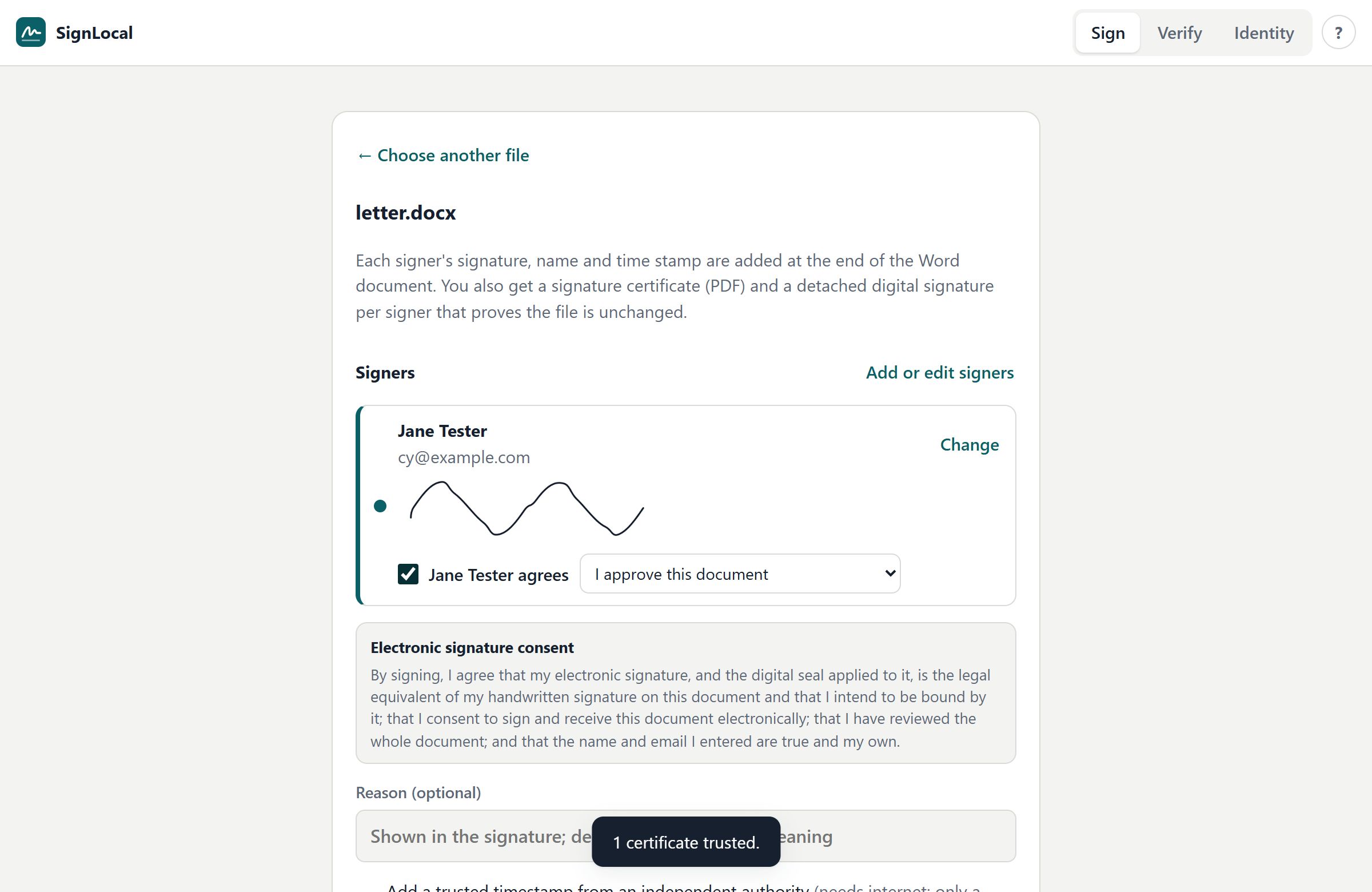
- Under Signers, choose Create signature for yourself.
- To add more people, choose Add or edit signers, add them, and create their signatures.
- Each signer reads the consent statement, ticks "<name> agrees", and chooses what their signature means.
- Optionally enter a Reason. Leave Add a trusted timestamp ticked when online.
- Choose Sign and download package.
You receive a .zip file containing:
| File | What it is |
|---|---|
name-signed.docx | Word only: your document with each signer's signature, name and timestamp added at the end. |
| the original file | Other files: unchanged. |
….p7s | A digital signature for each signer. Each proves the file has not changed since signing. |
…-signature-certificate.pdf | A readable certificate: the file's fingerprint, the signers, their signature images and times. It is sealed by every signer too. |
README.txt | A short explanation of the package. |
Keep the files together. To check them, choose the whole .zip in the Verify tab.
If you edit the Word document after signing, its signatures no longer match. Make your changes first, then sign.
Checking a signed file (Verify)
- Choose the Verify tab.
- Choose a signed PDF, a signed .zip package, or a file together with its .p7s files (select them all at once).
SignLocal checks every signature in the file and shows one card per signature.
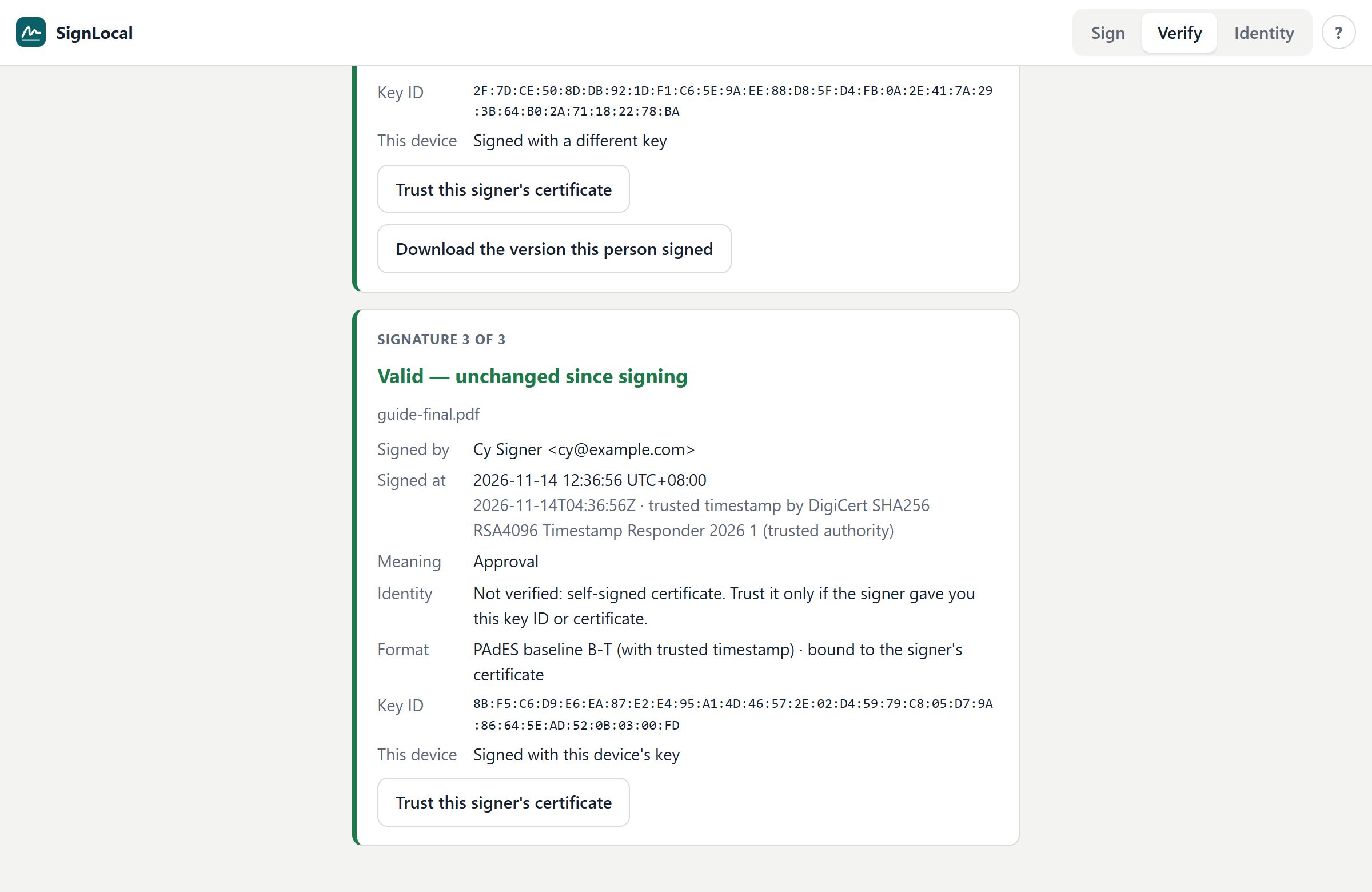
| Card | Meaning | What to do |
|---|---|---|
| 🟢 Valid — unchanged since signing | The file is exactly what this person signed. | Nothing. |
| 🟢 Valid — later signatures were added after this one | This person's signature is intact, and other people signed afterwards. | Normal for documents with several signers. Choose Download the version this person signed to see exactly what they approved. |
| 🟠 Valid for an earlier version — unsealed changes were added afterwards | The signature is intact, but something was added to the file after it without a new signature. | Download the signed version and compare it with the file you have. Ask the sender about the difference. |
| 🔴 Signature is NOT valid | The file was changed after it was signed, or the signature is damaged. | Don't rely on this file. Ask for a fresh copy. |
| 🔴 Locked document was changed after signing | The signer locked (certified) the document, and it was changed afterwards. | Download the version that was signed and ask the sender about the change. |
| ⚪ No digital seal found | The file has no digital signature that SignLocal can check. | It may have been signed without sealing, or it isn't a signed file. |
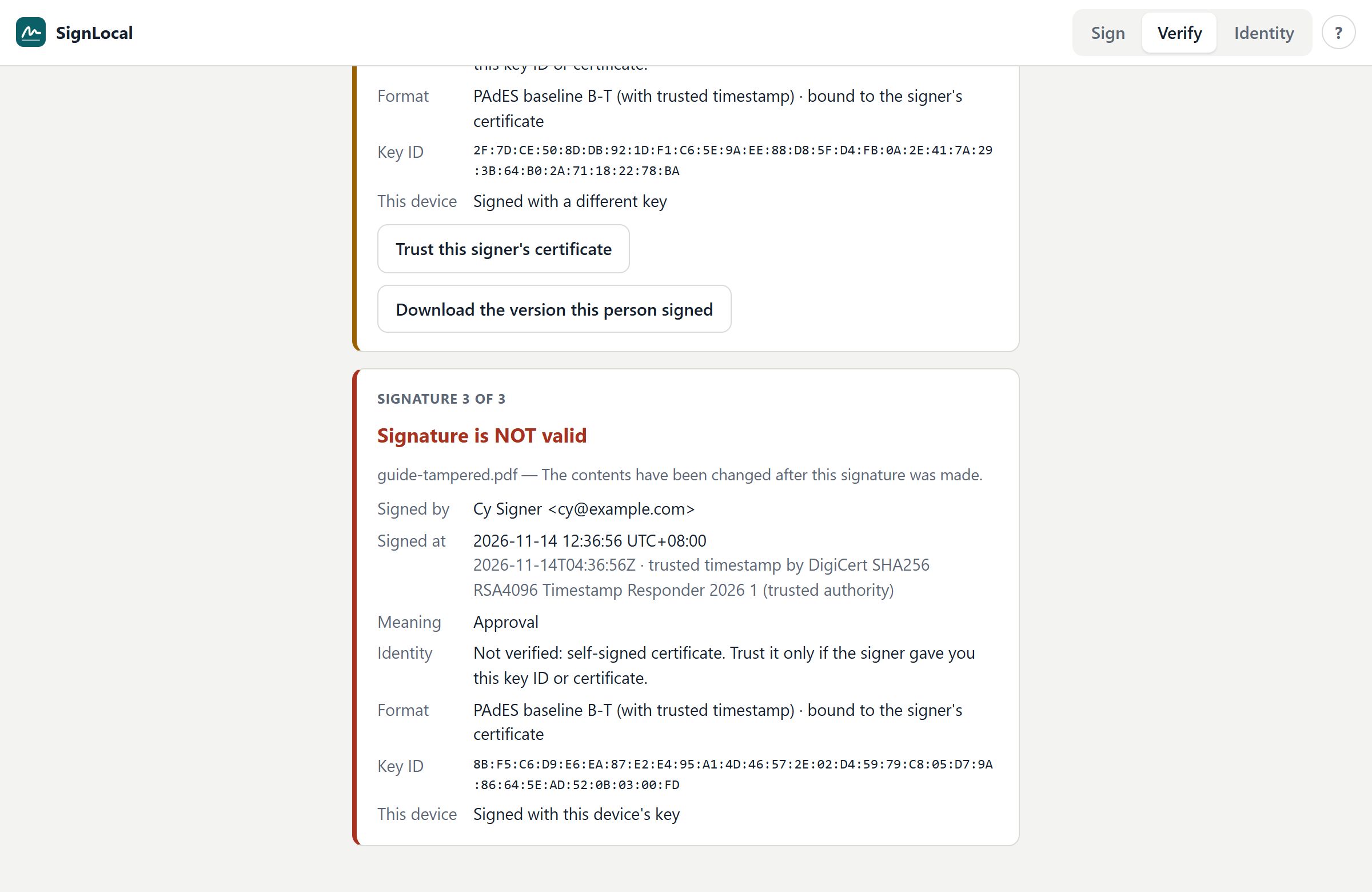
Each card also shows:
- Signed by: the name and email in the signer's certificate.
- Signed at: when they signed. Trusted timestamp by … means an independent authority certified the time; (trusted authority) means SignLocal checked that authority's certificate chain. From the signer's device clock means no trusted timestamp was added.
- Meaning: what the signer said their signature means (Approval, Author, Acknowledgement of receipt).
Identity:
- Verified means the signer's certificate is in your trusted list, or was issued by a certificate authority in it.
- Not verified means SignLocal can't confirm who holds the key. The signature still proves the file is unchanged. To verify a person, confirm their Key ID with them (by phone, or in person), then choose Trust this signer's certificate.
- Certified: shown if the signer locked the document.
- Format: the signature standard. PAdES baseline B-T is the EU standard format with a trusted timestamp; bound to the signer's certificate means the signature names the exact certificate used.
- Key ID: a fingerprint of the key they signed with. The same person on the same device always has the same key ID.
- This device: whether the signature was made with your device's key.
Your signing identity
The Identity tab manages the key that seals your signatures.
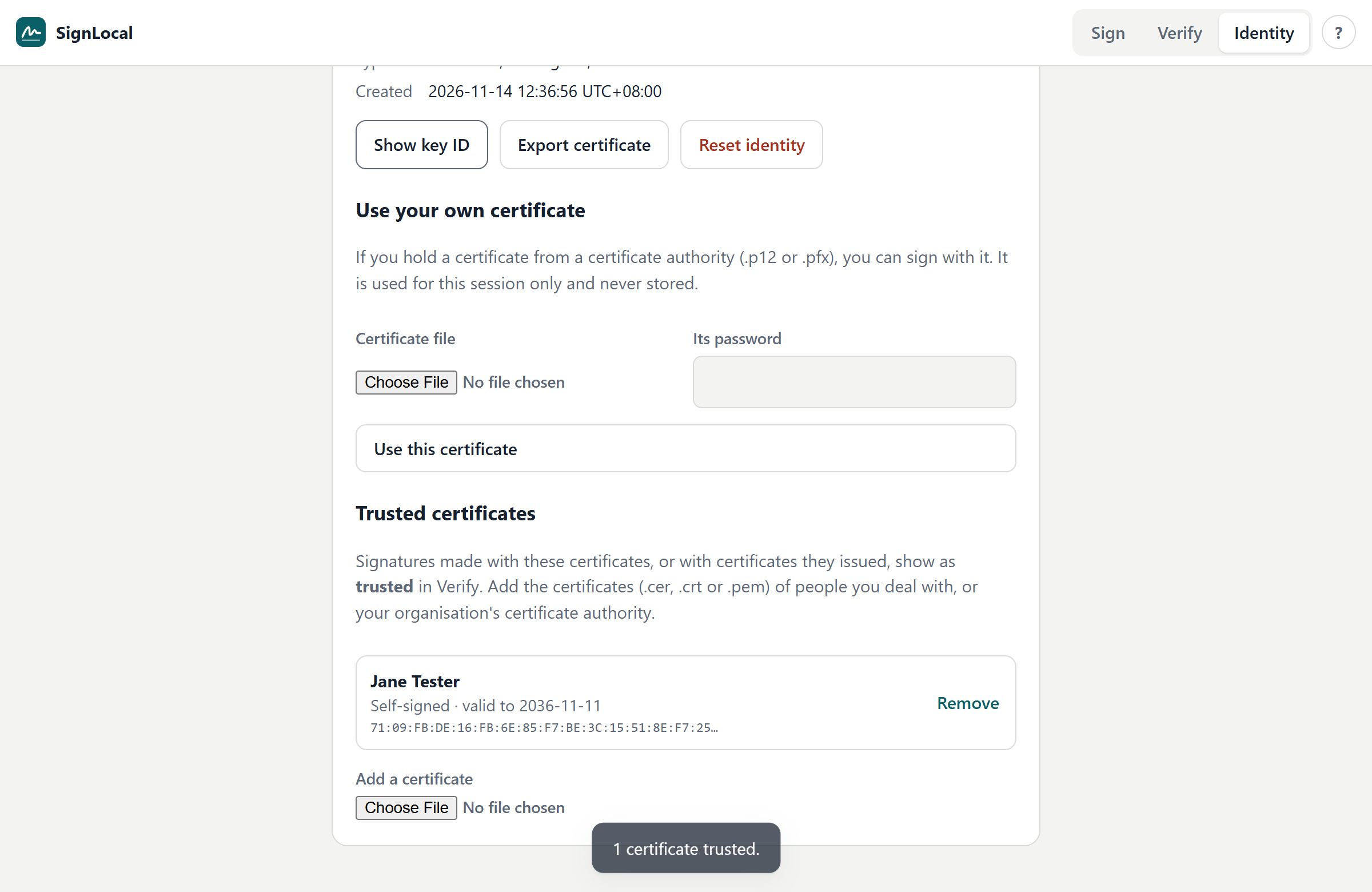
- Full name / Email: used for your certificate and as the default for new signatures.
- Show key ID: shows your key's fingerprint. Share it with people who receive your documents, so they can confirm signatures really came from you.
- Export certificate: saves a
.cerfile. Recipients can import it into Adobe Acrobat as a trusted certificate (see Adobe Acrobat). - Reset identity: deletes your key from this browser. Documents you already signed stay valid, but new signatures get a new key ID. Do this before handing a device to someone else.
- Use your own certificate: if your organisation or a certificate authority gave you a certificate file (
.p12or.pfx), choose it and enter its password. It is used until you close the page and is never stored. This gives your signatures the strongest legal standing, because a recognised authority has confirmed your identity. Expired certificates, and certificates not allowed to sign, are refused. - Trusted certificates: certificates you trust. Signatures made with them, or with certificates they issued, show as Verified in the Verify tab. Add a colleague's exported
.cer, or your organisation's certificate authority certificate, with Add a certificate, or choose Trust this signer's certificate on a Verify result after confirming the key ID with the signer.
People who sign on your device as extra signers get a one-time key for that signing only.
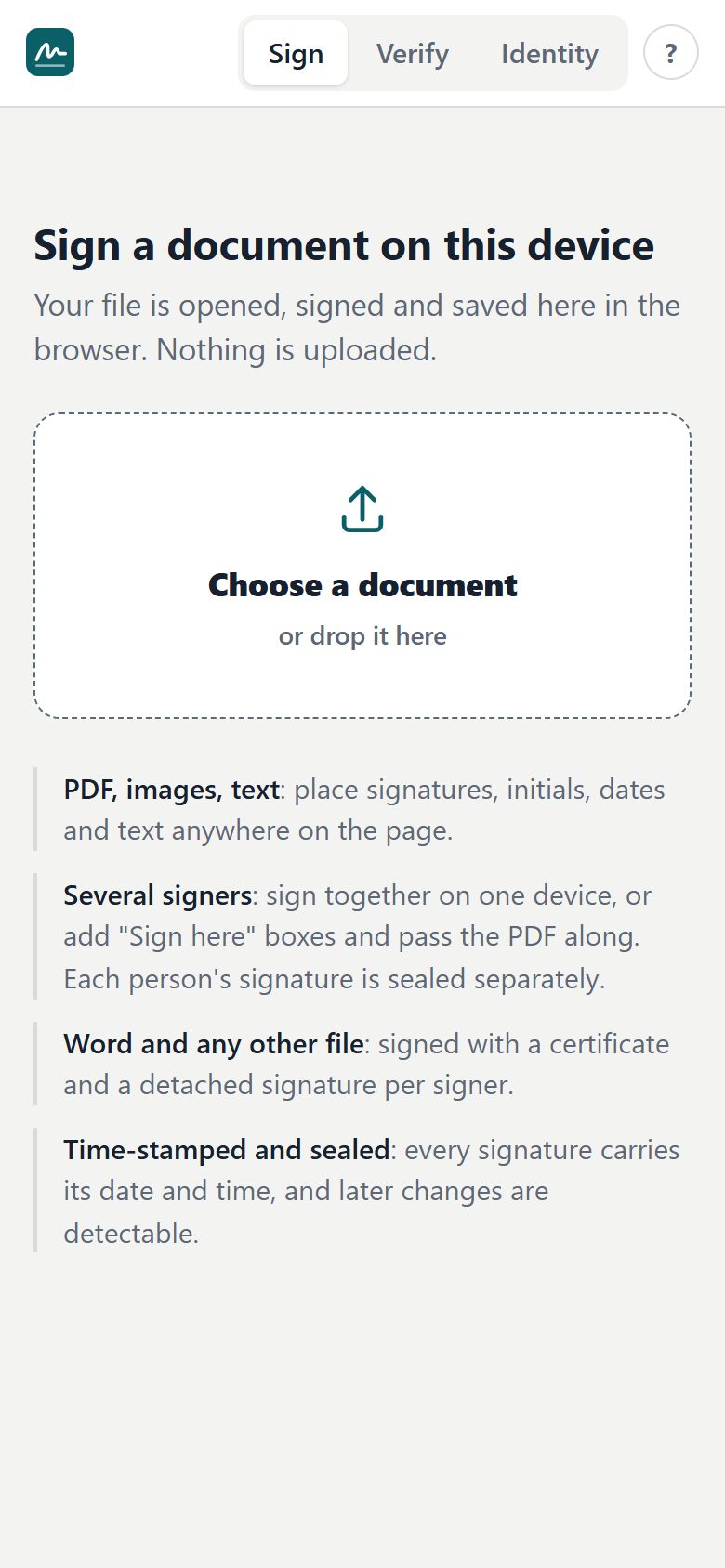
Using SignLocal on a phone or tablet
- Open https://signlocal.pages.dev in Safari (iPhone or iPad) or Chrome (Android).
Install it as an app:
- On iPhone or iPad, choose Share → Add to Home Screen.
- On Android, open the ⋮ menu → Install app (or Add to Home screen).
It then opens like an app and works without internet.
- Sign with your finger. Turn the phone sideways for a wider signing pad.
- The toolbar sits on its own row under the signer chip. Swipe it sideways if some tools are hidden.
- To send the result, choose Share after signing.
What other people see in Adobe Acrobat
Recipients don't need SignLocal. Adobe Acrobat or Acrobat Reader shows each signature in the Signature Panel:
- "Document has not been modified since this signature was applied" confirms the file is intact.
- "Signer's identity is unknown" or "validity unknown" appears because SignLocal's certificates are self-signed by default. This does not mean the file was changed.
To make Acrobat show a signer as trusted:
- The signer exports their certificate (Identity → Export certificate) and sends you the
.cerfile. - In Acrobat, go to Menu → Preferences → Signatures → Identities & Trusted Certificates → More…
- Choose Trusted Certificates → Import, choose Browse, select the
.cerfile and choose Import. - Select the imported certificate, choose Edit Trust, tick Use this certificate as a trusted root, and choose OK.
- Reopen the PDF. The signature now shows as valid with the signer's name.
Signatures made with a certificate from a recognised certificate authority (a .p12 from your organisation) may be trusted automatically.
Questions and troubleshooting
Is anything uploaded? Your documents never are. They are read, signed and saved on your device. The only thing that leaves your device is the 32-byte fingerprint of your signature, sent to get a trusted timestamp (you can untick that option).
Is this legally binding? SignLocal records intent, consent and a tamper-evident, time-stamped seal in the international PAdES/CAdES formats. These are the elements electronic-signature laws such as Malaysia's Electronic Commerce Act 2006, the EU's eIDAS and the US ESIGN Act look for. Some documents (for example wills and powers of attorney) and some uses need a specific kind of signature. See Legal validity.
How accurate is the time? With trusted timestamps on, an independent authority certifies the time, and your device's clock doesn't matter. Without them, the time comes from your device's clock.
"No trusted timestamp was added". Your device couldn't reach the timestamp service (no internet, or a firewall blocking signlocal.pages.dev). The signature is still valid but uses your device's time. Sign again when online if you need a trusted time.
I see "This PDF already has N signatures". Earlier people have signed it. Your signature will be added without affecting theirs. The certificate page can't be added at this point; your details are recorded in your own signature.
The orange "Sign here" box shows someone else's name. It was prepared for that person. You can still sign it, and SignLocal warns you that you are signing someone else's box. Check you have the right document.
My saved signature has gone. Saved signatures and your key live in this browser on this device. Clearing browsing data, using private browsing, or switching browser or device starts fresh. Create the signature again. You will also get a new key ID.
Verify says "Signed with a different key" for my own document. It was signed on another device or browser, or after Reset identity. Each browser has its own key.
Can I change a document after signing it? Not without breaking the seal. Make your changes in the original document, then sign again.
The page looks blurry or the signature is the wrong size. Zoom with + to place it accurately, and drag the corner handle to resize. What you see on screen is what goes into the PDF.
It says the PDF is password-protected. Remove the password in the program that created it, then try again.
SignLocal on SharePoint shows nothing. Refresh the page. If it still shows nothing, ask your SharePoint administrator to check that the SignLocal app is enabled for your site (see the setup guide).